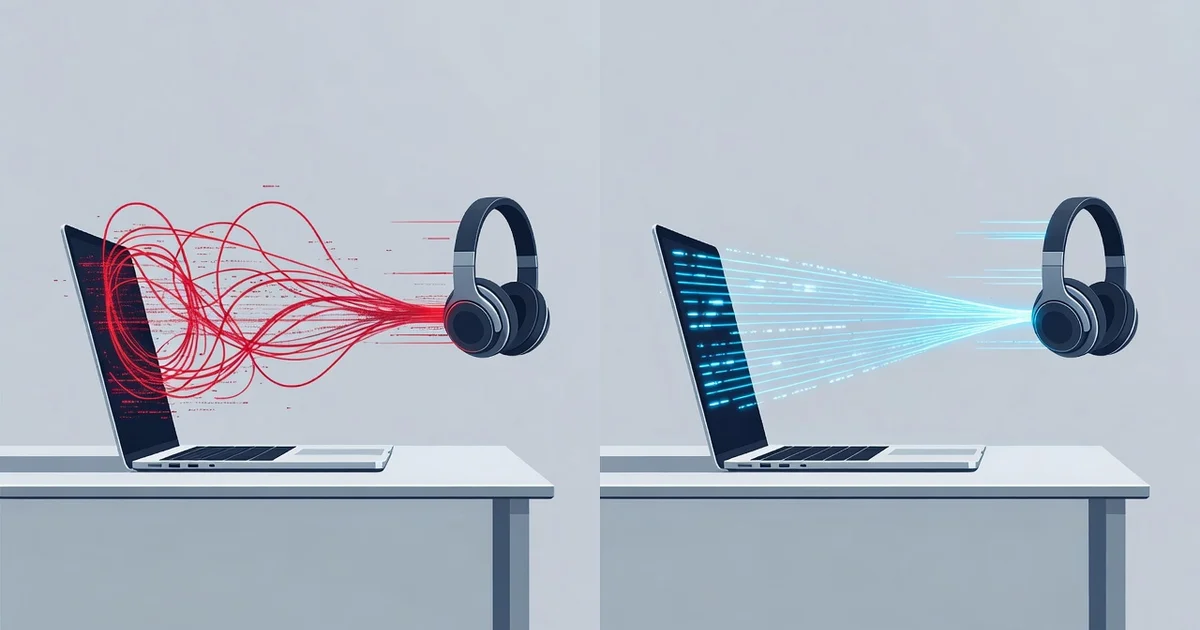
Ever noticed your video and audio falling out of sync? That frustrating delay is called latency, and it can ruin everything from gaming to video calls. The good news is that modern wireless audio devices reduce latency dramatically, delivering sound that keeps pace with the action on your screen.
In this article, we’ll explore the technology behind low-latency wireless audio, from advanced codecs to dedicated transmission protocols. You’ll learn what actually causes delay and how to choose devices that keep your audio perfectly in sync.
Introduction
Wireless audio has become the default for everything from earbuds on a commute to multi-room speakers and gaming headsets. Yet one question follows every wireless audio product: how much delay is there between the source and the sound reaching your ears? That delay is called latency, and it is the single biggest reason wireless audio sometimes feels out of sync with a video, a game, or a live performance.
The good news is that modern wireless audio devices reduce latency dramatically compared with early Bluetooth products. This article explores How Wireless Audio Devices Reduce Latency with clear, practical guidance. You will learn what latency actually is, which technologies shrink it, how codecs and hardware work together, and what you can do with your own gear to get the tightest possible sync. Understanding the fundamentals of How Wireless Audio Devices Reduce Latency helps you make informed decisions, whether you are buying a headset, tuning a home theater, or troubleshooting a laggy connection.
Reliable information and consistent habits lead to better long-term outcomes. Latency is not a single number you memorize once; it changes with your device, your environment, and your settings. By the end of this guide, you will know how to measure it, reduce it, and keep it low.
Key Concepts
Before diving into fixes, it helps to define the moving parts. Latency in wireless audio is the total time from when an audio signal leaves the source (phone, console, computer, TV) until it is converted back to sound by the speaker or earbud. It is usually measured in milliseconds (ms). For reference, 1 ms is one-thousandth of a second. Human perception of audio-visual sync starts to break down somewhere around 20–30 ms of audio delay for lip-sync, while musicians and gamers notice far less.
Sources of latency
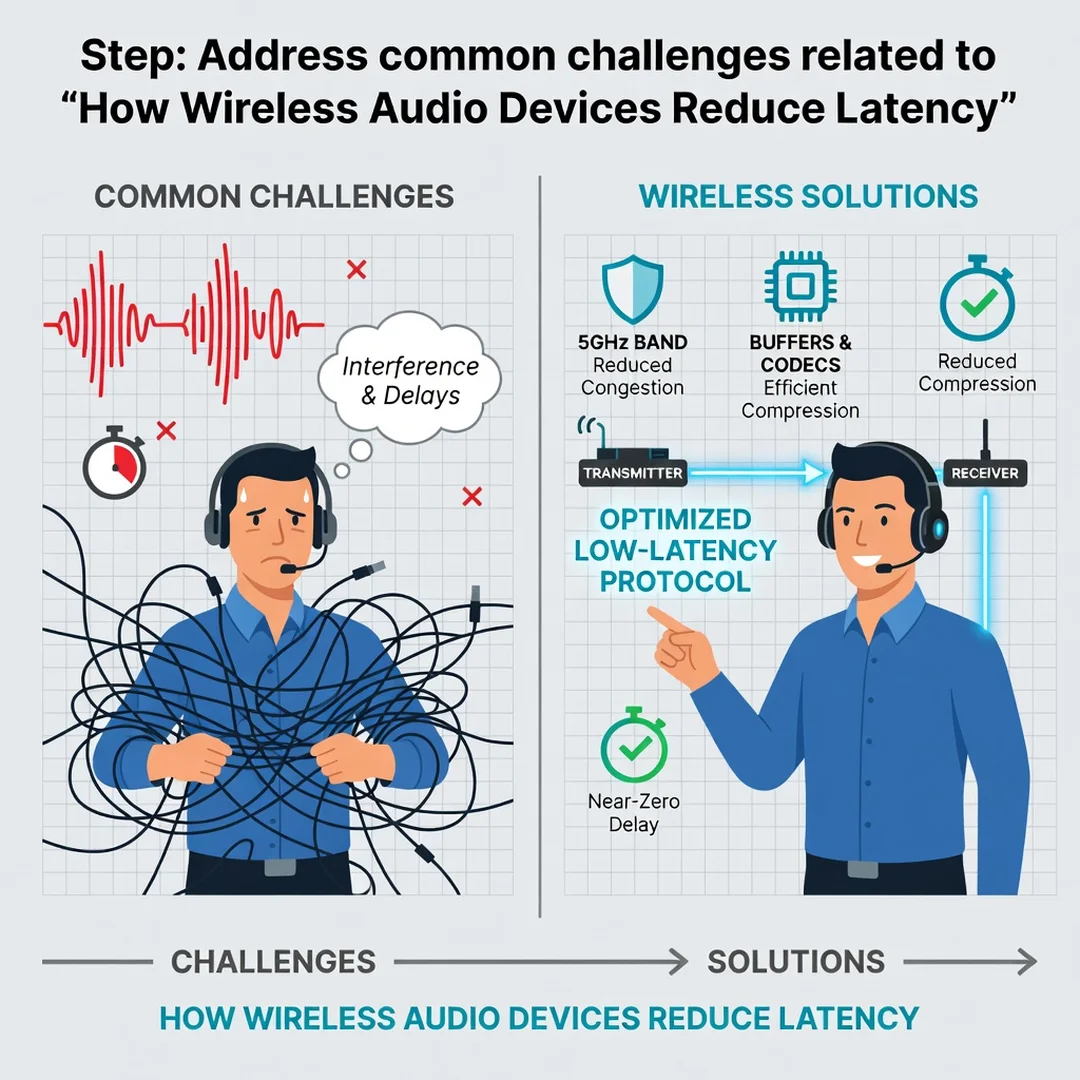
Latency accumulates in stages, and every stage adds to the total:
- Encoding delay: The source compresses audio into a format the wireless link can carry.
- Transmission delay: The radio sends packets over the air, which takes time and may involve retries.
- Buffering delay: Devices hold a small amount of audio in memory to smooth out interruptions. Bigger buffers mean more stability but more latency.
- Decoding and amplification: The receiving device decompresses the audio and converts it to analog sound.
Why wireless adds latency at all
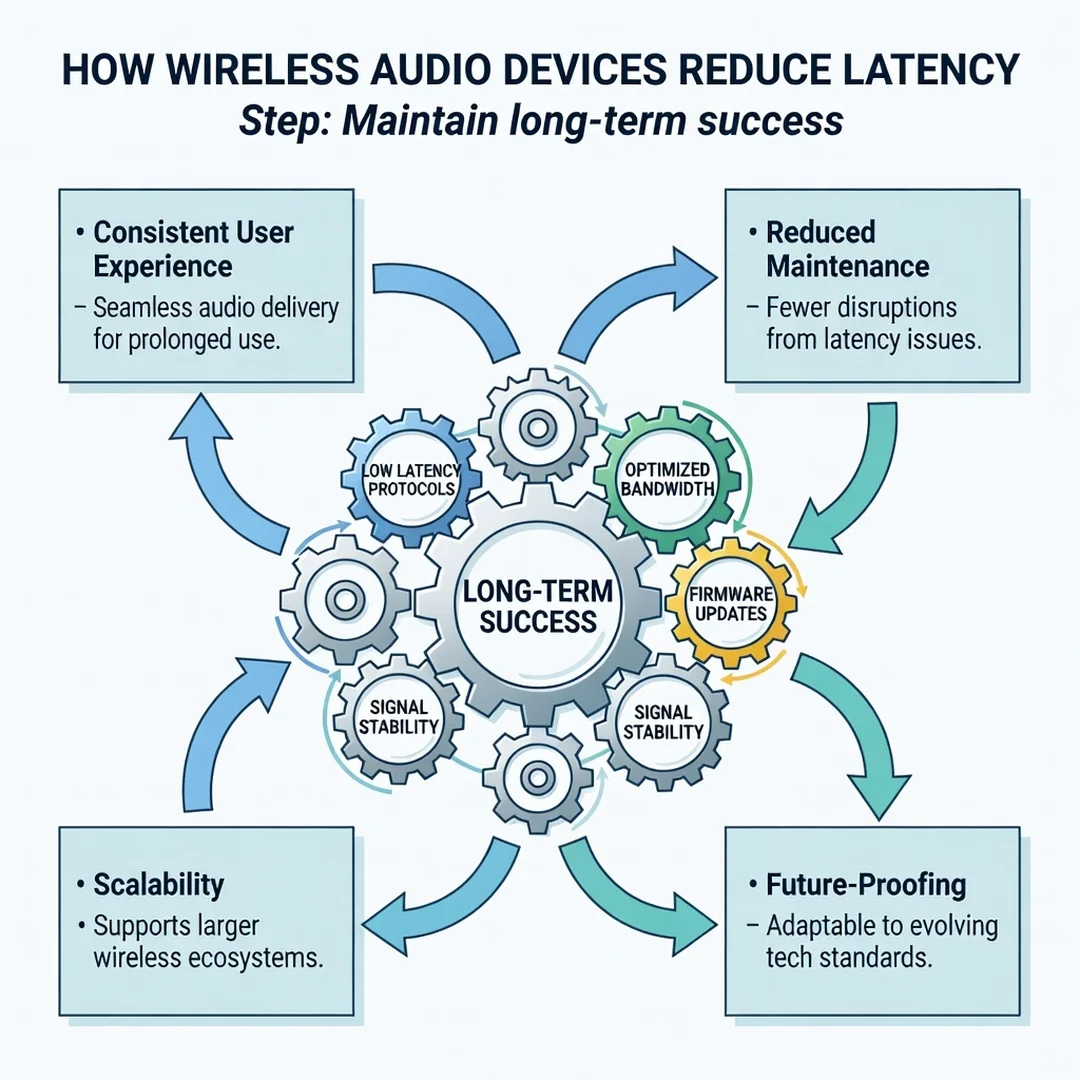
Wired connections are nearly instant because the electrical signal travels directly. Wireless must package data into digital packets, send them through the air, and reassemble them. Radio interference, distance, and competing signals can force the system to resend packets, which adds delay. This is why a crowded Wi-Fi or Bluetooth environment can make audio feel sluggish even on good hardware.
The role of codecs
A codec (coder-decoder) determines how audio is compressed and transmitted. Some codecs prioritize sound quality, while others prioritize speed. Low-latency codecs use smaller packet sizes, faster processing, and sometimes send redundant data so a lost packet does not cause a stall. Matching the right codec to your use case is one of the most effective ways to reduce latency.
Deep Dive
Now that the basics are clear, let us look at the specific technologies and design choices that let wireless audio devices reduce latency. These mechanisms often work together, and a good product combines several of them.
Bluetooth and its low-latency modes
Standard Bluetooth audio (SBC, AAC) can introduce 100–200 ms of latency, which is fine for music but poor for gaming or video. To fix this, manufacturers use low-latency modes. Qualcomm’s aptX Low Latency and aptX Adaptive, for example, cut delay to roughly 40–80 ms. Sony’s LDAC can be tuned for lower latency, and many gaming headsets use proprietary 2.4 GHz dongles that bypass Bluetooth entirely. These modes work by reducing buffer size, using more efficient compression, and prioritizing speed over maximum bitrate.
2.4 GHz versus Bluetooth
Bluetooth operates in the 2.4 GHz band but uses a frequency-hopping scheme designed for coexistence. A dedicated 2.4 GHz wireless link, like those used by Logitech and SteelSeries headsets, uses a proprietary protocol with a fixed, optimized channel. This avoids the overhead of Bluetooth pairing and retransmission, often achieving latency under 20 ms. If you need the lowest possible delay, a 2.4 GHz dongle is usually the best choice.
Wi-Fi audio and low-latency streaming
Wi-Fi can carry much more data than Bluetooth, so it can support higher-quality audio with lower compression. Technologies like Apple’s AirPlay 2 and Google Cast buffer audio to keep playback smooth across rooms, which paradoxically can increase latency. However, newer Wi-Fi 6 and Wi-Fi 6E devices reduce congestion and use features like target wake time to send packets more predictably. For synchronized multi-room audio, the system often adds a deliberate delay to all speakers so they match, which is a different kind of latency management.
Hardware and processing power
Faster chips decode audio more quickly. A dedicated audio processor in earbuds or a headset can handle compression and error correction without waiting on a general-purpose CPU. This is why premium devices often feel more responsive than budget ones, even when using the same codec. Antenna design also matters: a well-placed antenna maintains a stronger link, reducing the need for retransmissions.
Adaptive buffering
Some devices dynamically adjust buffer size based on connection quality. When the signal is strong, they shrink the buffer to cut latency. When interference appears, they grow it to prevent dropouts. This trade-off is central to wireless audio design, and understanding it helps you choose the right settings for your environment.
Best Practices
You do not need to be an engineer to get low-latency audio. These practical habits will help you reduce delay with the gear you already own.
- Use the right codec: Check your device settings for low-latency modes such as aptX Adaptive, AAC Low Latency, or a gaming mode. Enable them when watching video or gaming.
- Prefer a dedicated dongle for gaming: If your headset came with a USB transmitter, use it instead of Bluetooth. It almost always delivers lower latency.
- Reduce distance and obstacles: Keep the source and receiver in line of sight where possible. Walls, metal, and even your body can weaken the signal.
- Minimize interference: Turn off unused wireless devices, move away from microwaves and dense Wi-Fi, and avoid USB 3.0 ports near your receiver, as they can emit noise in the 2.4 GHz band.
- Update firmware: Manufacturers frequently improve latency through firmware updates. Check for them regularly.
- Adjust your TV or console settings: Many TVs have a “game mode” or audio delay slider that compensates for wireless latency. Use it to align sound with picture.
- Keep batteries charged: Low battery can cause a device to reduce transmission power or enter a power-saving mode that increases latency.
Consistency matters. Apply these habits every time you set up a new device, and you will avoid the slow drift into laggy performance that happens when settings reset or firmware changes.
Step-by-Step Guide to Reducing Wireless Audio Latency
Follow these steps in order to diagnose and fix latency in your own setup. Each step builds on the last, and you can stop as soon as your audio feels in sync.
Step 1: Understand the fundamentals
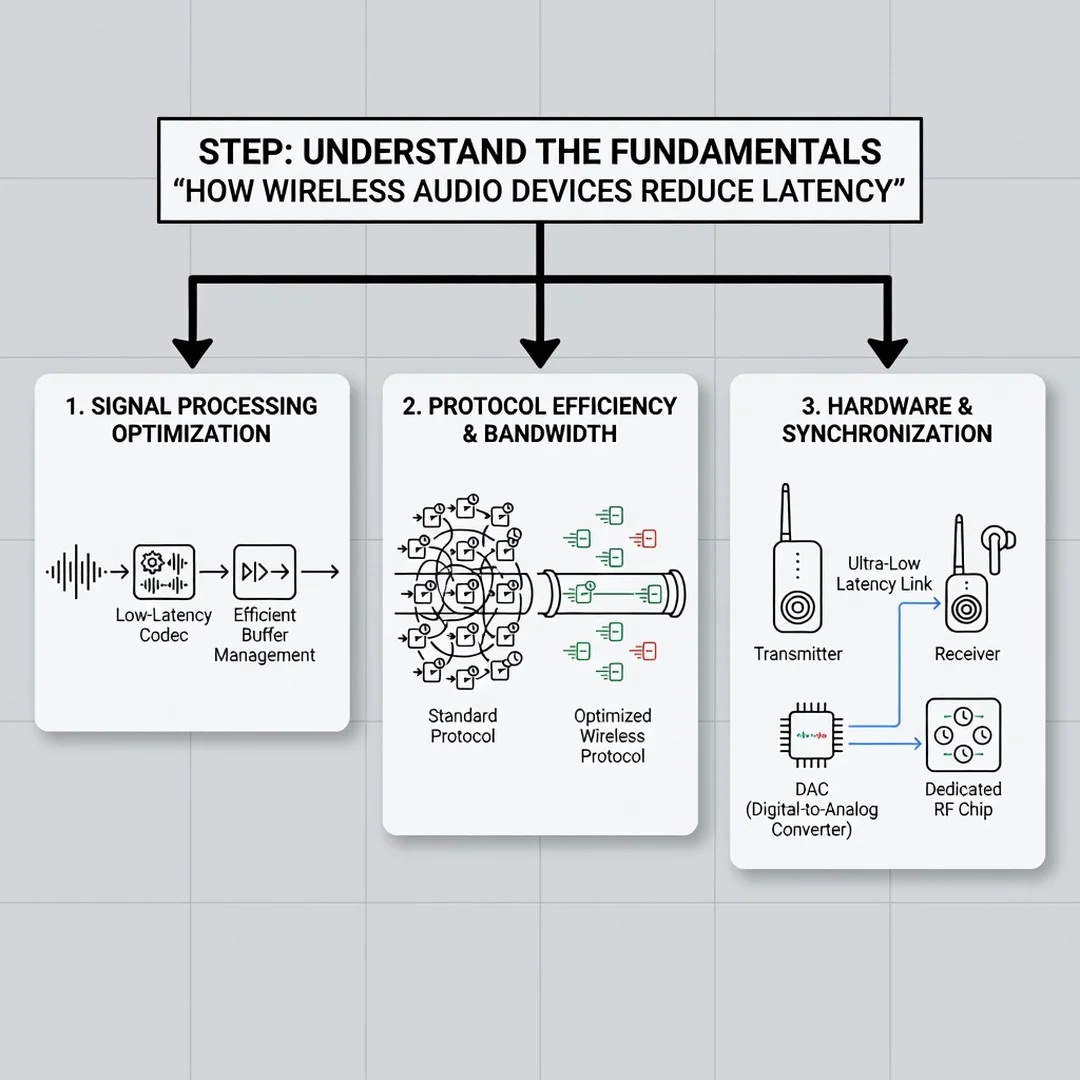
Start by identifying where latency comes from in your specific chain. Is it the source (phone, PC, console), the wireless link (Bluetooth, 2.4 GHz, Wi-Fi), or the receiving device (headphones, speaker)? Knowing the stages—encoding, transmission, buffering, decoding—helps you target the right fix. For example, if you are using standard Bluetooth on a PC, the codec is likely the biggest culprit. If you are on a 2.4 GHz dongle but still feel delay, the issue may be buffering or interference.
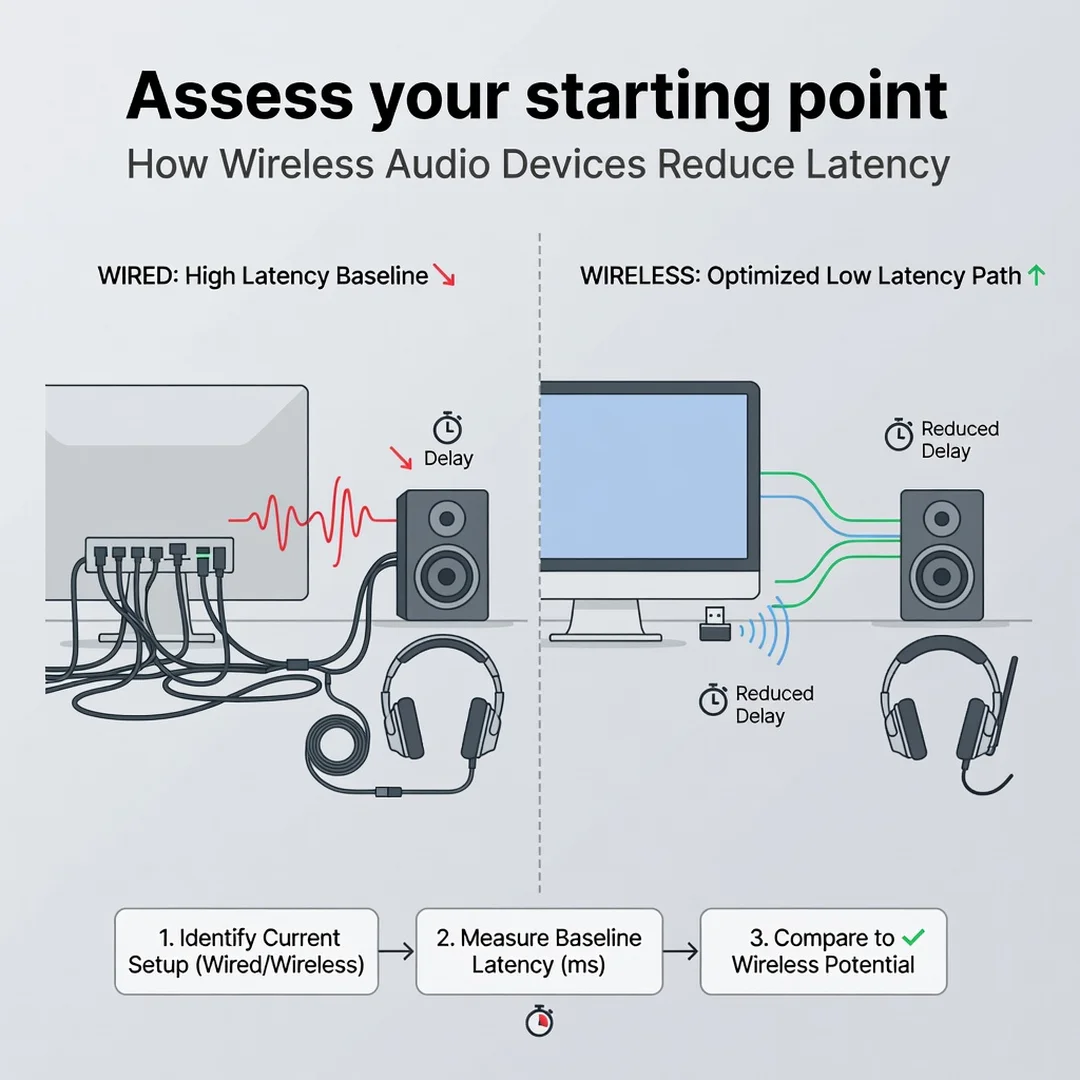
Step 2: Assess your starting point
Measure your current latency as best you can. Many apps and online tools can test audio-visual sync by playing a click and asking you to tap in time. For gaming, try a rhythm game or a lip-sync video and note whether audio arrives early or late. Write down your device model, connection type, codec in use, and distance from the source. This baseline tells you how much improvement is possible and whether a hardware upgrade is worth it.
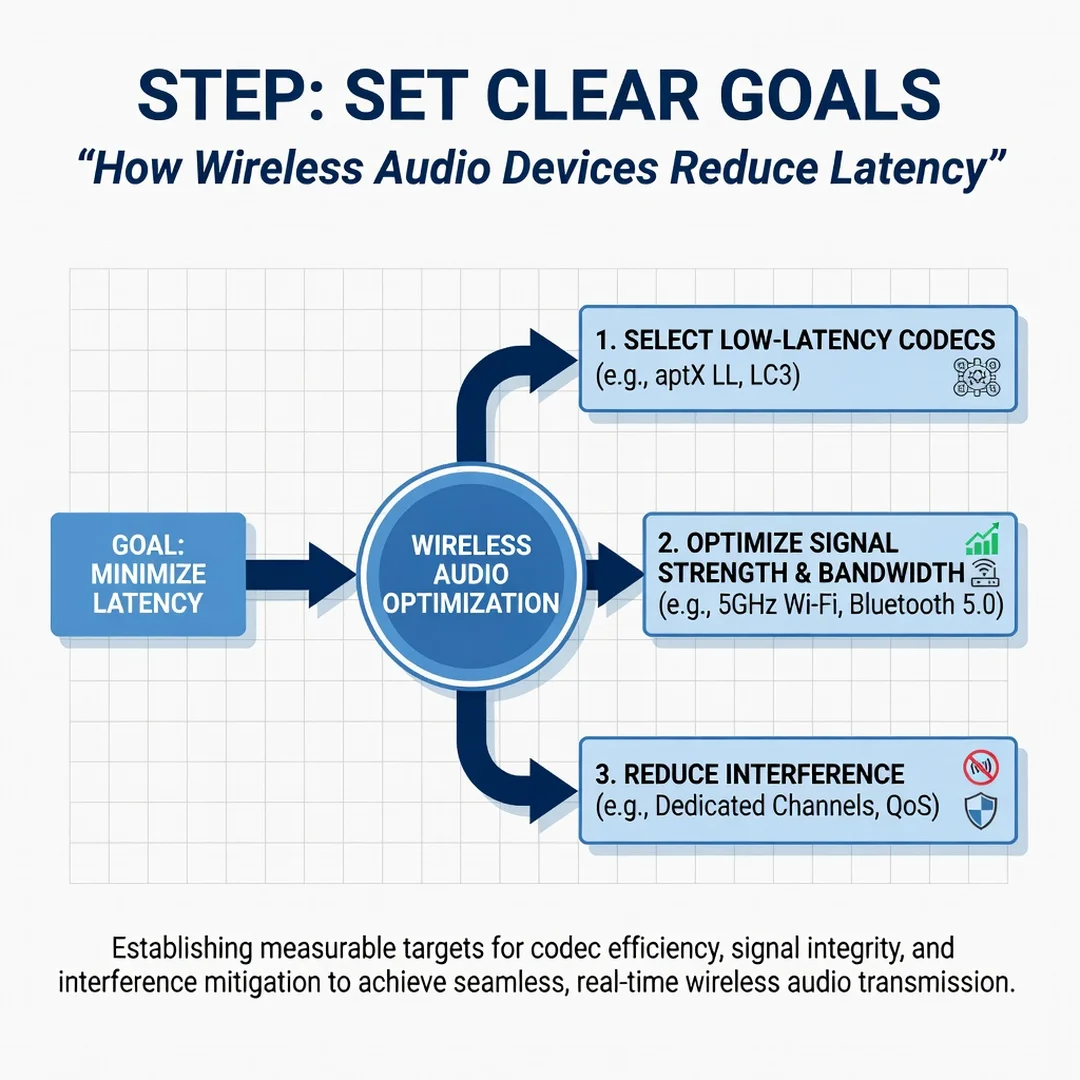
Step 3: Set clear goals
Decide what level of latency you need. For casual music listening, 150 ms is usually unnoticeable. For video, aim for under 100 ms. For competitive gaming, target under 40 ms, and for live monitoring or instrument playing, you want under 20 ms. Your goal determines which solutions are acceptable. If you need under 20 ms, Bluetooth alone will not get you there; you will need a 2.4 GHz or wired connection.
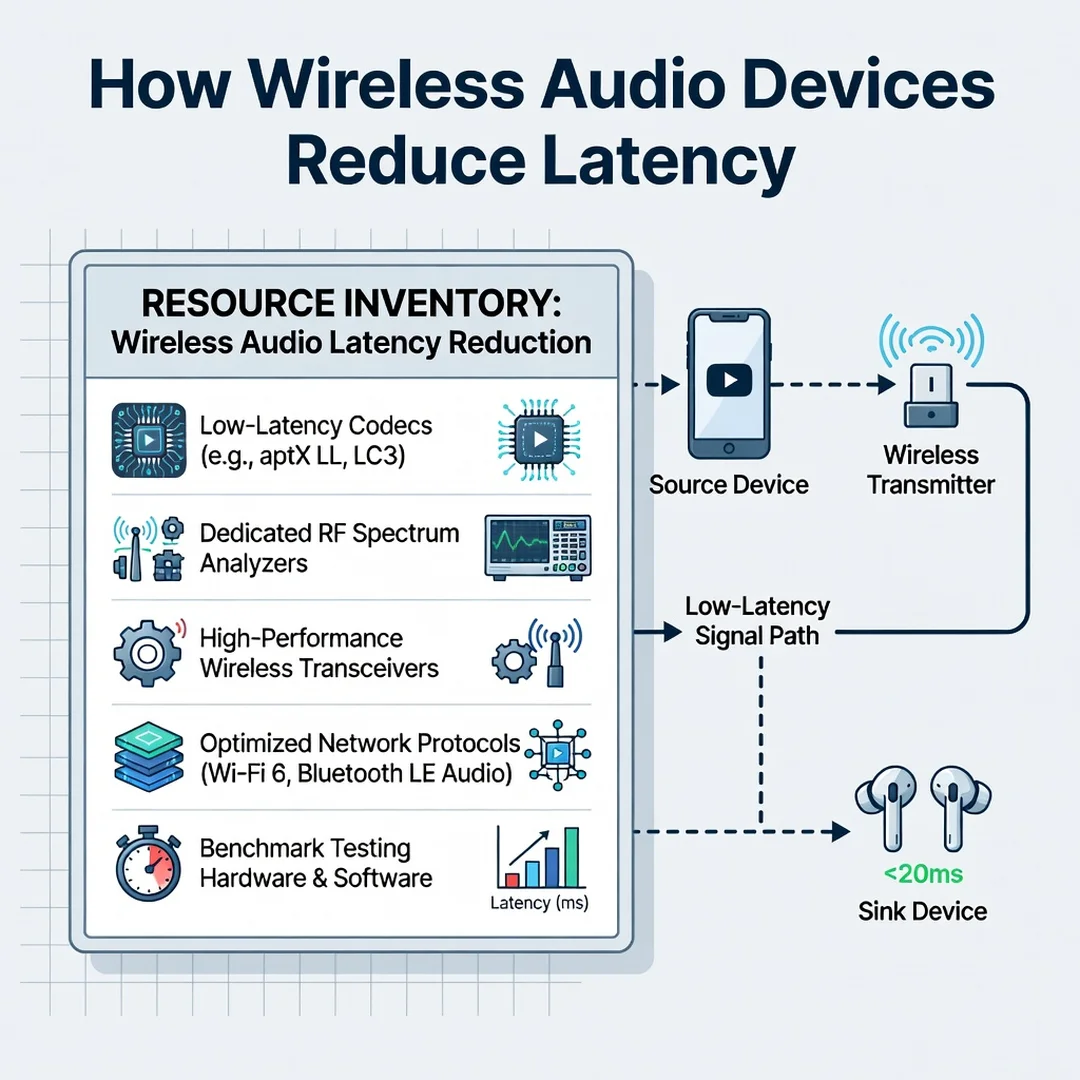
Step 4: Gather necessary resources
Collect what you need to make changes: your device manuals, a charged battery, any included dongles or cables, and access to settings menus. If you are on a computer, install the manufacturer’s companion app, which often exposes low-latency modes and firmware updates. For consoles, check the audio output settings. Having everything ready prevents frustration and lets you test changes quickly.
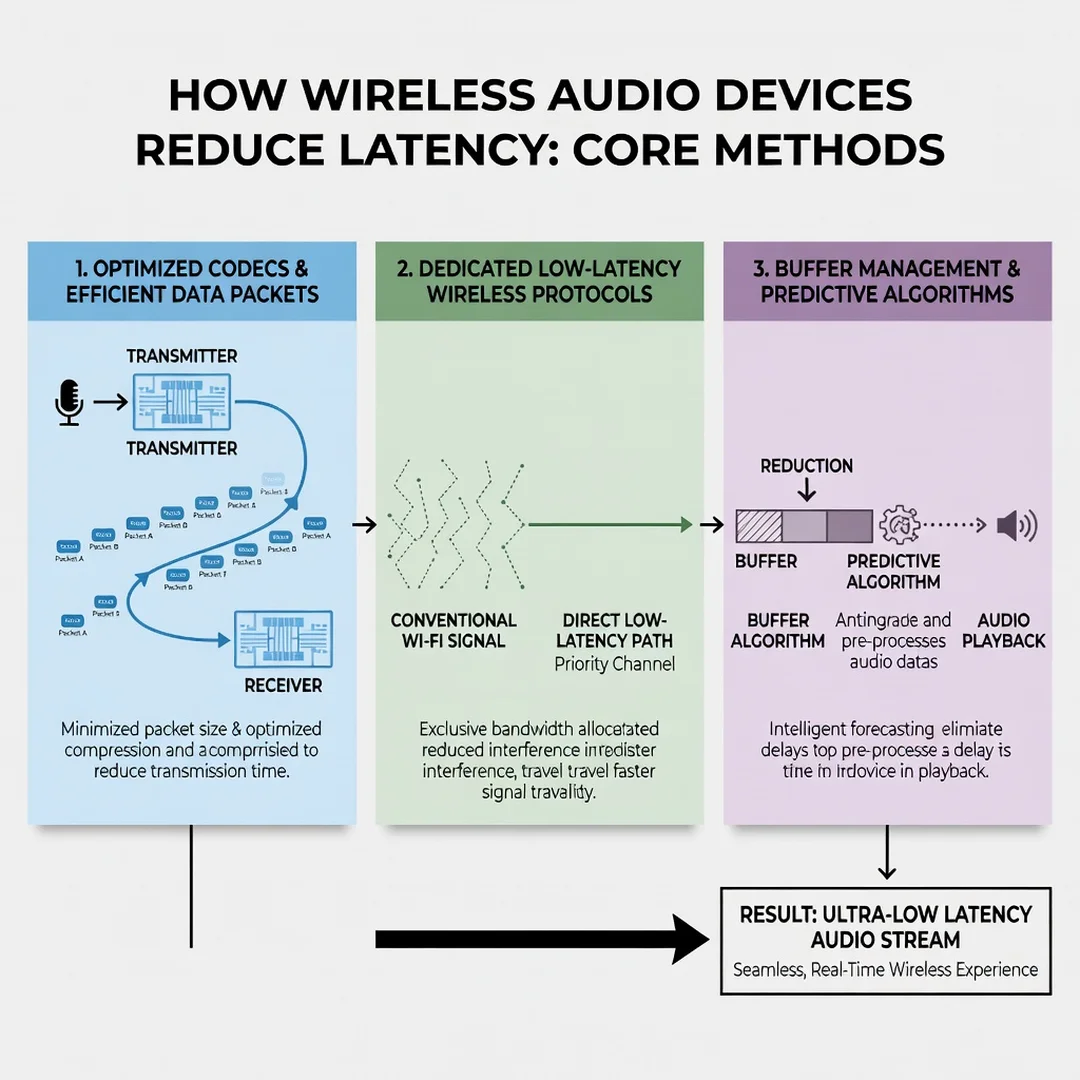
Step 5: Apply the core methods
Now make the changes. Enable low-latency codecs or game mode. Switch from Bluetooth to a 2.4 GHz dongle if available. Move the receiver closer to the source and remove obstacles. Turn off competing wireless devices. Update firmware. Adjust your TV or console’s audio delay setting to fine-tune sync. Apply one change at a time and test after each, so you know exactly what worked. This methodical approach is the heart of reducing latency reliably.
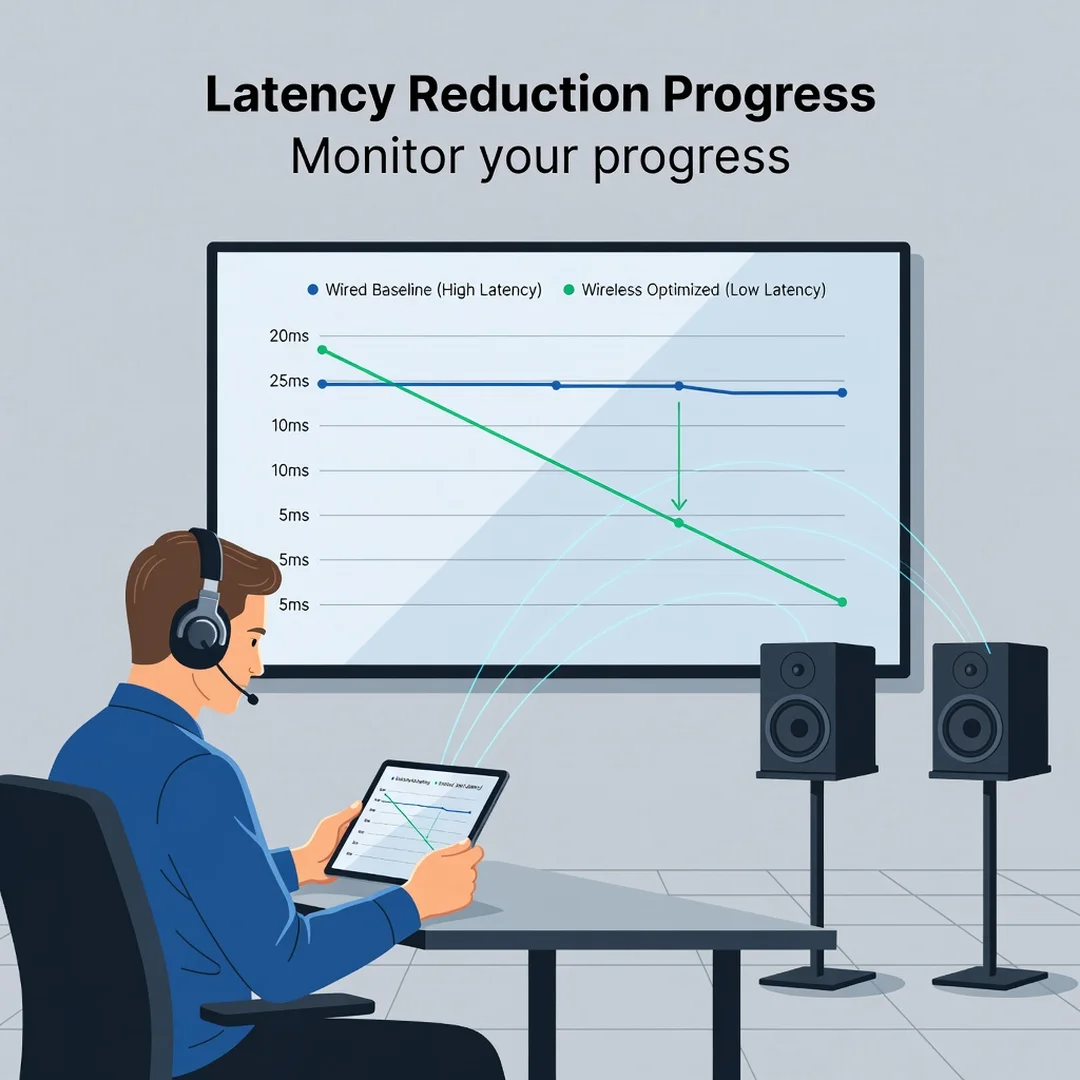
Step 6: Monitor your progress
After each change, re-test with the same method you used in Step 2. Keep a simple log of settings and results. Over time, you will learn which adjustments matter most for your environment. Re-check periodically, because new devices, firmware updates, or a rearranged room can reintroduce latency. Consistent monitoring turns a one-time fix into a lasting habit.
FAQ
What should I know about How Wireless Audio Devices Reduce Latency?
The most important thing to know is that latency is a sum of several delays, not a single flaw. Wireless devices reduce it by using efficient codecs, smaller buffers, faster processors, and sometimes dedicated 2.4 GHz links instead of Bluetooth. No single.
You now have a solid foundation for How Wireless Audio Devices Reduce Latency. Apply the best practices above and revisit this guide as your needs evolve.